
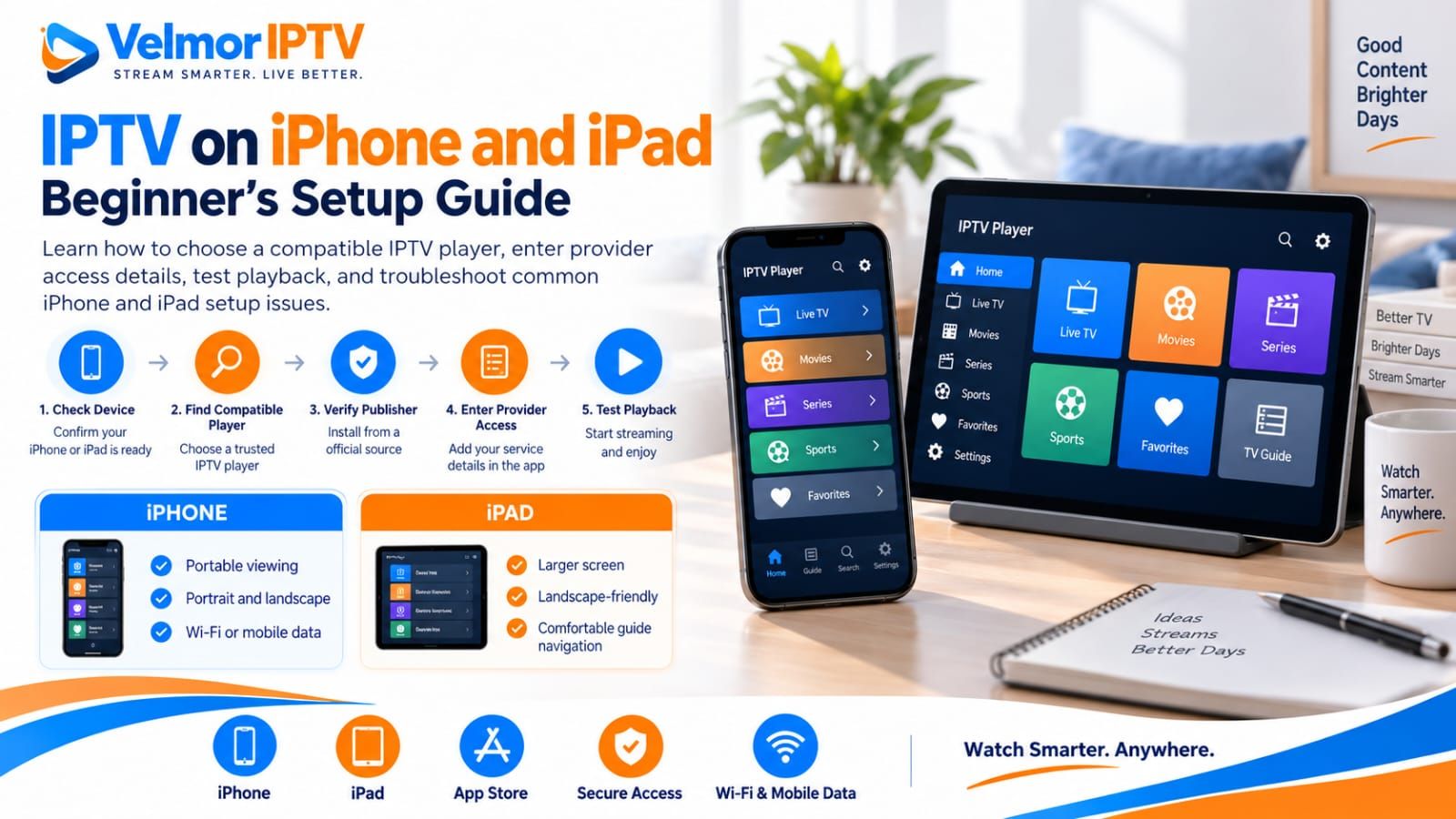
Yes, IPTV can be used on an iPhone or iPad when a compatible player is available, the player accepts the access format issued by the provider, the device is online, and the provider and account terms allow the intended use. Installing a player does not automatically include an IPTV subscription or service access.
The safe setup path is straightforward: verify the device and player, obtain legitimate provider details, select the matching input method, allow the first data load to finish, and test ordinary content. This guide stays platform-neutral because App Store availability, player features, and device support can change. If IPTV itself is new to you, start with what IPTV is and how it works.
Can You Use IPTV on iPhone and iPad?
An iPhone or iPad can act as the viewing device when four conditions line up: the hardware and operating system support a suitable player, that player accepts the provider-issued access method, the network connection works, and the account permits the device and intended session.
The player is the application interface. It may organize channels, show guide data, and control playback, but it usually does not supply the subscription represented by provider details.
What You Need Before Setup
Prepare the device, a trusted player choice, legitimate service access, and a stable connection before entering anything. This prevents a player problem from being confused with an account problem and reduces the chance of exposing private details while searching for a workaround.
- An iPhone or iPad that is online and running a supported iOS or iPadOS version.
- Access to the official App Store and enough available storage for the chosen player.
- A compatible player whose listing identifies the publisher and accepted access formats.
- Provider-issued M3U or API-style details obtained through the provider’s legitimate channel.
- The provider’s device, session, location, and subscription terms for the intended use.
- A practical Wi-Fi or mobile-data connection for initial loading and playback tests.
Update the device through Apple’s normal system interface when an appropriate supported update is available, and preserve important data before maintenance. You do not need to jailbreak the device, install an unknown configuration profile, or bypass the App Store. Those actions introduce risk and are not legitimate setup requirements.
IPTV Player vs IPTV Subscription
The player and subscription solve different parts of the setup. The player is software installed on the iPhone or iPad. The provider supplies authorized service access and determines account status, available service data, and plan rules. One can be working while the other has a problem. See the player-versus-provider guide for a deeper responsibility map.
| Part | Typical owner | What to verify |
|---|---|---|
| App installation and interface | Player publisher and Apple platform | Device support, publisher, permissions, updates, and app help |
| Access credentials or playlist | IPTV provider | Issued format, active account, correct details, and secure delivery |
| Device and session allowance | IPTV provider and purchased plan | Permitted devices, simultaneous use, and location terms |
| Player purchase or activation | Player publisher | App pricing, license scope, and supported Apple devices |
| Home or mobile connection | User, router or carrier, and internet provider | Connectivity, data allowance, signal, and local conditions |
How to Choose a Compatible iPhone or iPad Player
Choose by compatibility and trust rather than a universal “best” label. Search the official App Store on the intended device, then compare the listing with the exact access method your provider issues. Avoid naming or installing an app merely because an unrelated tutorial uses it; availability and functionality can differ.
- Confirm that the current App Store listing supports the iPhone or iPad and OS version.
- Verify the publisher identity and use the publisher’s listed support route when needed.
- Check whether the app accepts the provider-issued M3U or API-style input method.
- Read the privacy information and assess requested permissions against the app’s purpose.
- Review update history, current ratings in context, pricing, and in-app purchase terms.
- Look for touch-friendly navigation, readable guide views, and controls suited to the screen.
A player that fits an iPhone may also work on an iPad, but do not assume identical interface behavior or feature support. Check both device listings when both matter. For a detailed evaluation framework, use the IPTV player selection guide.
How to Set Up IPTV on iPhone
The iPhone setup should move from device readiness to one controlled playback test. Exact buttons and menu names vary by player, so follow the verified app’s own documentation rather than expecting every interface to use the same labels.
- Confirm the iPhone is online, has available storage, and is running a version supported by the chosen player.
- Search the official App Store and inspect the player’s publisher, privacy details, and access formats.
- Install and open the verified player without adding unknown profiles or certificates.
- Obtain current provider details through the provider’s legitimate private channel.
- Select the input method matching those details, such as the supported playlist or API-style option.
- Enter or import the details privately and check for accidental spaces or transcription errors.
- Let the initial service-data load finish before opening or refreshing other screens.
- Test several ordinary items one at a time and note whether listings, playback, and controls work.
- Configure only documented preferences that the player and device support.
On a smaller screen, portrait orientation may be convenient for lists and touch navigation, while landscape may provide a larger viewing area. Rotate only when the player and device respond normally. If orientation is locked at the system level, the app cannot necessarily override that setting.
How to Set Up IPTV on iPad
The iPad uses the same safe sequence: verify device support, choose a legitimate compatible player, enter provider-issued details using the matching method, wait for the data load, and test playback. The practical differences are primarily screen size, layout, and how you use the device.
- Check the iPad model, iPadOS version, network connection, storage, and App Store access.
- Confirm the chosen player’s iPad listing and publisher rather than relying on its iPhone availability.
- Install from the official listing and review any permission request before accepting it.
- Use the provider-issued access format and enter details through the app’s supported method.
- Allow categories, channel data, and any guide information to finish loading.
- Test navigation and several ordinary items in the orientation you expect to use.
- Review documented full-screen and multitasking behavior if those workflows matter.
The larger display may make channel lists, guide rows, and touch targets more comfortable, especially in landscape. That is a usability consideration, not proof of additional player features or better stream quality. An iPad and iPhone using the same network can still differ because their models, OS versions, app versions, or settings differ.
How Provider Access Details Work on iOS
The provider determines the issued access format; the player determines which input formats it accepts. An M3U-style setup may use a complete URL, while an API-style setup may use a server address, username, and password in separate fields. These formats are not interchangeable merely because both can describe service access.
Select the matching method and copy details exactly, preserving capitalization and punctuation while avoiding extra spaces. Do not alter the server path, port, or parameters by guessing. The M3U versus Xtream Codes guide explains how the formats differ without requiring you to expose a real credential.
An accepted login is only one checkpoint. Allow the catalog to load, verify that categories are present, test a small selection, and check that closing and reopening the player retains the expected account state. If the login is rejected, follow the login and playlist troubleshooting guide.
App Store, Publisher, and Privacy Checks
Treat the App Store listing as a starting point for verification, not a guarantee that every app fits your provider or privacy expectations. Confirm the publisher name, supported devices and OS versions, accepted access methods, pricing terms, privacy information, update history, support link, and any permission request.
Avoid listings or external pages with unclear publisher identity, misleading copies of familiar names, unverifiable support, or pressure to install a configuration profile. Never enter provider details into an app until you have verified that it is the intended listing. If in doubt, ask the provider which access format is needed, not for an unsafe download workaround.
Wi-Fi vs Mobile Data for IPTV
Both Wi-Fi and mobile data can provide an internet path, but neither is always better. Results depend on signal quality, congestion, internet routing, household traffic, carrier coverage, plan limits, the device, the player, and the stream. Test the intended network under normal conditions rather than relying on one universal speed number.
On Wi-Fi, note distance from the access point, walls, competing household activity, and whether other legitimate streaming apps behave normally. A strong Wi-Fi indicator does not guarantee an uncongested internet path. If practical, compare the same item near the usual access point while leaving player and account settings unchanged.
On mobile data, confirm that cellular access is allowed for the player in iOS settings and that the carrier plan has suitable data availability. Streaming can consume substantial data depending on duration and quality, so monitor usage through the carrier and device tools. Roaming, carrier restrictions, and local network quality can also matter.
Portrait, Landscape, and Full-Screen Viewing
Choose orientation according to the task. Portrait can suit channel lists, search, and one-handed navigation on an iPhone. Landscape usually gives video more horizontal space and can make an iPad comfortable for viewing. The player’s actual layout and rotation behavior depend on its implementation and the device’s orientation settings.
Before assuming rotation is broken, check whether orientation lock is enabled in Control Center and whether the current player screen supports rotation. Some menus may remain in one orientation even when playback rotates. Exact behavior should be verified in the player’s current documentation rather than treated as an iOS-wide rule.
AirPlay and External Display Considerations
Some combinations of app, iPhone or iPad, operating system, content, receiving device, and network may support screen mirroring or media output. Support is not universal. It can also depend on provider terms and restrictions attached to the content, so verify all relevant documentation before planning around AirPlay or an external display.
If external output does not work, keep the test narrow: confirm ordinary on-device playback, confirm the receiving device works with another authorized source, and record the exact result. Do not install bypass tools, remove content protections, jailbreak the device, or alter security settings to defeat a restriction.
External viewing may also count toward provider device or session rules depending on the implementation and terms. Ask before assuming that output to another screen is permitted or counted in a particular way. For a television-first setup, the dedicated Smart TV setup guide may be a clearer route.
Common IPTV Problems on iPhone and iPad
Troubleshoot by symptom rather than applying a universal reset. Record whether the app is unavailable, will not open, rejects access, loads an empty catalog, fails during playback, behaves differently between networks or devices, lacks guide data, or disconnects another session. Then follow the smallest relevant branch.
| Symptom | Check first | Next step |
|---|---|---|
| Player not found in the App Store | Device and OS compatibility, region availability, exact publisher listing | Choose another verified compatible player; do not sideload |
| Player will not open | App and OS updates, available storage, normal device restart | Use publisher support with the crash details |
| Login rejected | Issued access format, exact entry, account status, and expiry | Use login and playlist troubleshooting |
| Catalog is empty | Initial refresh, active filters, access format, and service response | Preserve errors and contact the provider if needed |
| Playback buffers or stops | One versus many items, Wi-Fi or cellular scope, device, player, and time | Use buffering troubleshooting |
| Works on Wi-Fi but not mobile data | Player cellular permission, carrier data, coverage, and plan restrictions | Compare another legitimate streaming app |
| Works on iPhone but not iPad, or the reverse | Model, OS, app version, configuration, and network differences | Hold account and test item constant |
| Guide is missing or wrong | EPG refresh, mapping, device time zone, and source data | Use the EPG guide |
| One device disconnects another | Purchased simultaneous-connection allowance and active sessions | Review device and connection limits |
For an issue spanning several layers, use the step-by-step IPTV troubleshooting guide. For persistent starts, stops, or freezing, follow the buffering diagnostic guide. If video plays but schedule information is wrong, use the EPG guide.
Do not clear all app data or reinstall automatically. Either action can erase a saved configuration without addressing the cause. If the publisher documents one of those steps for the observed symptom, secure the provider details first and understand what will be removed. Avoid VPN or DNS changes without evidence and trusted, case-specific guidance.
iPhone and iPad vs Smart TV or Streaming Device
An iPhone or iPad is touch-first, portable, and able to use Wi-Fi or cellular where permitted. A television or streaming device is usually designed around a larger fixed display and remote control. Neither category is universally better; choose according to screen size, navigation preference, location, player availability, and provider support.
If you are comparing platforms, review the existing Android TV and Google TV guide along with Smart TV guidance. Check the current player listing on every intended platform because purchasing or configuring an iOS app does not automatically provide a television or Android license.
Count each intended screen and concurrent viewer before choosing a plan. Installation on several devices does not establish permission to stream on all of them simultaneously. The IPTV device-limit guide separates registered or configured devices from active connections.
What to Check Before Buying
Verify the intended iPhone or iPad setup before committing to a subscription duration. The goal is to confirm the device, player, access format, network expectations, account rules, and support path as separate requirements. A provider claim of broad device support does not replace checking the exact model and app.
- Record the iPhone or iPad model and current iOS or iPadOS version.
- Confirm that a suitable player is currently available in the official App Store.
- Verify the app publisher, privacy information, permissions, updates, and support details.
- Ask which access format the provider issues and confirm the player accepts it.
- Confirm registered-device and simultaneous-session limits for the selected plan.
- Consider normal Wi-Fi conditions, mobile-data availability, carrier limits, and expected usage.
- Verify external-display expectations with the player, provider, Apple behavior, and receiving device.
- Compare subscription duration and current total rather than relying on an old article price.
- Identify the official support or contact route before payment.
- Use an available trial to test the intended device and network within its stated terms.
Keep app charges and provider charges separate when comparing costs. A player may be free, paid, subscription-based, or use in-app purchases, while service access has its own plan. Review the current App Store terms and the provider’s current pricing information at the time of the decision.
Using Velmor IPTV on iPhone and iPad
Velmor’s website provides current one-device plan choices on the pricing page. Before ordering, confirm that the intended iPhone or iPad player supports the issued access method and that the one-device plan fits your intended use.
An existing 24-hour free trial for 1 device can be used to evaluate a planned setup under the trial terms. Test the actual device, legitimate App Store player, and normal Wi-Fi or cellular environment. A short trial cannot guarantee future network or source conditions, but it can confirm basic compatibility at test time.
For general steps, use Velmor’s setup guidance. For a question about access format, the one-device plan, or intended use, contact Velmor through the official contact route before subscribing. The site’s FAQ covers broader service questions.
This section does not claim universal iOS compatibility, guaranteed playback quality, AirPlay support, uptime, VPN functionality, or an anti-freeze mechanism. Compatibility and results must be checked for the current device, player, plan, provider terms, and network conditions.
iPhone and iPad IPTV Questions
Can I Use IPTV on iPhone?
Yes, when a compatible player is available, it accepts the provider-issued format, the iPhone is online, and the provider and account terms allow the use. Verify the current App Store listing for the exact device and OS version.
Can I Use IPTV on iPad?
Yes, under the same compatibility and account conditions. An iPad’s larger display may make lists and landscape viewing more comfortable, but actual features depend on the player and current iPadOS support.
Do I Need an IPTV Player on iPhone?
You need a legitimate compatible way to enter the provider-issued access and play the service. In this architecture that is normally a suitable player from the official App Store; confirm the provider’s format before choosing one.
Does Installing a Player Include an IPTV Subscription?
Not automatically. A player is the application, while a provider supplies service access. App pricing or activation and provider subscription pricing can be separate.
Can I Use IPTV Over Mobile Data?
Potentially, if the player has cellular permission, the carrier connection and plan support the use, and provider terms allow it. Monitor data consumption and do not assume one universal requirement or performance level.
Can I Use IPTV on Wi-Fi and Cellular?
A compatible player may work over either internet path, but results and permissions can differ. Test each network separately while keeping the device, player, account, and item unchanged.
Can I Use the Same Account on iPhone and iPad?
Only within the provider’s registered-device and simultaneous-session rules. Saving details on two devices does not necessarily permit both to stream at once. Confirm the selected plan before testing.
Why Does IPTV Work on Wi-Fi but Not Mobile Data?
Check whether cellular access is enabled for the player, whether other legitimate streaming apps work, and whether the carrier has usable coverage, data allowance, or restrictions. Preserve the comparison instead of changing credentials or DNS randomly.
Can I Use AirPlay With IPTV?
Possibly, but support is not universal. It depends on the player, iOS or iPadOS behavior, content restrictions, provider terms, network, and receiving device. Do not attempt to bypass a restriction.
Can I Test the Service Before Subscribing?
Velmor currently provides a 24-hour free trial for 1 device. Use the trial within its terms on the intended iPhone or iPad, verify the App Store player and access method, and test normal network conditions before selecting a plan.