
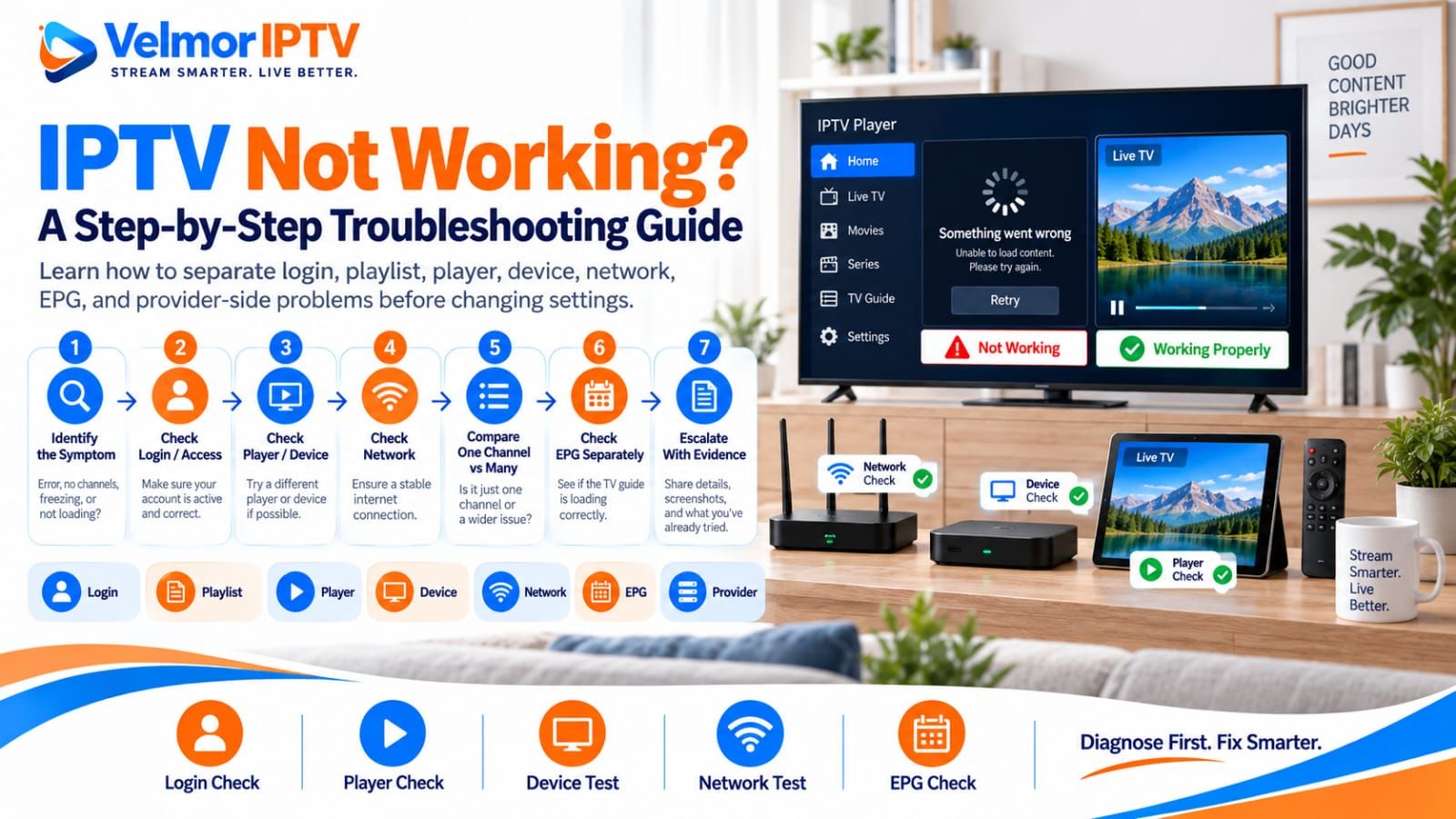
When IPTV is not working, first identify the exact symptom and find out whether it follows the account, one channel, one player, one device, or the whole network. Do not change several settings at once. A controlled comparison usually narrows the problem faster and creates useful evidence if you need support.
Use this order: classify the symptom, compare where it happens, change one relevant variable, repeat the same test, and escalate with evidence. That sequence separates login and service-data problems from playback, guide, device, app, network, and provider-side conditions without assuming which party is responsible.
IPTV Not Working: Start by Identifying the Symptom
“Not working” can describe unrelated failures. The app may not open, a login may be rejected, service data may not load, the catalog may appear empty, a stream may never start, playback may buffer or stop, or the program guide may be missing. Write down what you see before attempting a fix.
Then define the scope. Does the same item fail repeatedly? Do other channels play? Does the account behave differently on another supported device? Does another legitimate streaming app work on the same network? These comparisons do not prove a cause, but each removes broad categories from the first investigation.
Change one variable and repeat the exact test. For example, keep the device, network, account, and channel the same while restarting only the player. If you change the player, router, credentials, device, and channel together, success will not reveal which change mattered and failure will be equally unclear.
Is the Problem Login, Loading, Playback, or Guide Data?
Place the symptom into a practical category before following a specialist guide. An app that will not launch points first toward the app or device. Rejected access details point toward entry, expiry, format, or account status. A loaded catalog with failed playback is different from a catalog that never arrives. EPG data is separate again.
| Symptom | Likely area to inspect first | Next guide |
|---|---|---|
| Player app will not open | Device software, storage, installation, or player support | Device setup or player selection guide |
| Login is rejected | Access format, entry, account status, or expiry | Login and playlist troubleshooting |
| Playlist or service data will not load | Issued details, format compatibility, or service response | Login and playlist troubleshooting |
| Catalog is empty | Refresh, category filters, account data, or provider response | Login and playlist troubleshooting |
| Stream never starts | Item scope, player output, network path, or source availability | Buffering troubleshooting |
| Playback buffers, freezes, or stops | Scope, time, network, device, player, route, or source | Buffering troubleshooting |
| One channel fails | That stream or listing | Buffering troubleshooting |
| Many channels fail | Account, player, device, network, route, or service condition | This guide, then a specialist guide |
| EPG is missing or wrong while video plays | Guide source, mapping, refresh, or time settings | EPG guide |
| One device fails | That device, player, or local connection | Matching device guide |
| Multiple devices fail | Shared account, network, route, or provider condition | This guide and provider support |
| Another legitimate streaming app also fails | Device internet access or home network | Network checks in this guide |
The table is a starting point, not a diagnosis. A generic error can come from several layers. Follow the guide matching the observed boundary: login and playlist checks, buffering and playback checks, or the EPG guide.
Check Whether the Device and Player Are Working
Confirm that the device responds normally, has internet access, and can open the installed player. If the player closes immediately, freezes before showing its interface, or cannot update through its legitimate source, investigate the app and device before changing account details. Test another ordinary app to see whether the device has a broader problem.
Restart the player normally, then restart the device once if needed. Check system date and time and whether the platform remains supported. Avoid replacement APKs from unknown sites. For installation issues, use the guides for Smart TV, Fire TV, or Android TV and Google TV.
A working app does not prove its access configuration is correct, and a working device does not prove the service is available. It only establishes that you can move to the next layer. Preserve the same test channel and account while checking the following steps.
Check Whether the Account or Access Details Are Accepted
If the player opens but rejects access, compare the issued method with the fields the player expects. M3U URLs and API-style username, password, and server details are different formats. Do not paste one format into fields intended for another. The M3U versus Xtream Codes guide explains the distinction.
Re-enter details carefully from the provider’s original message, checking capitalization, punctuation, and hidden spaces. Confirm the account is active and any stated start or expiry date fits the current date. Never use credential generators, shared logins, cloned playlists, reseller panels, or third-party “checkers.” They create privacy and account risks.
If the same credentials are rejected in every supported player or device, record the exact message and ask the provider to verify account status. Do not send a password, token, or full playlist URL in public messages or screenshots. Use the dedicated login guide rather than repeatedly editing fields.
Check Whether the Playlist or Service Data Loads
Accepted credentials and loaded service data are separate checkpoints. A player may save an account yet fail to retrieve categories, channels, or on-demand listings. Note whether refresh begins, returns an error, times out, or finishes with an empty catalog. Check whether an active filter or hidden category makes loaded data look empty.
Refresh through the player’s normal control once. If the provider issued a new URL or method, use only current confirmed details. Do not edit server paths, ports, DNS values, or playlist parameters by guessing. A malformed change can replace the original symptom and can disclose credentials if copied into an unsafe tool.
Compare the same issued access on one other supported player only when the terms allow it. If one compatible player loads data and another does not on the same device and network, player compatibility deserves attention. If neither loads it, retain the error and escalate rather than cycling through untrusted apps.
Does One Channel Fail or Many?
Scope is a strong clue. If one channel fails while several unrelated channels play, the device, account, and basic network path are capable of playback. The failing stream, its listing, or a temporary source condition becomes more relevant. Record the exact channel and time instead of changing the entire setup.
If a related group fails, compare one channel outside that group. If live television fails but on-demand content plays, or the reverse, report that boundary. If every tested item fails, move outward through account, player, device, network, and provider checks without declaring the provider responsible from one generic message.
Repeat only a small representative set. Rapidly opening many streams can create overlapping sessions or confusing errors. Useful evidence might say one named channel failed twice at a stated time, three unrelated channels played, and the same result followed a normal player restart.
Does One Device Fail or Multiple Devices?
When one device fails but another supported device works with the permitted account, inspect the failing device’s player, software, storage, connection, and access entry. Keep the tested item and time close enough to make the comparison meaningful. Different results hours apart could reflect a temporary condition rather than the device alone.
When multiple devices fail together, look for what they share: account, household network, internet route, access method, or service source. Test another legitimate internet app. If all internet use fails, start with the network. If ordinary apps work but IPTV does not, preserve that distinction for support.
Stay within the plan’s device and connection count. A second device is a comparison tool only when its use is authorized. Review device and simultaneous-connection limits because one session interrupting another may be expected under the plan.
Check the Internet and Home Network
Confirm the device is connected and can load another legitimate online service. Compare Wi-Fi and wired behavior only if both are supported and practical. A wired connection can reduce Wi-Fi variability, but it does not repair expired access, missing provider data, or a failing source. No universal speed threshold diagnoses every IPTV problem.
Notice whether the symptom affects one room, one device, all household devices, or other streaming services. Heavy household traffic, weak coverage, a device moving between access points, or an internet outage may create different patterns. Run the same short test after large household transfers finish, changing nothing else.
A normal router restart may be reasonable if its documentation recommends it, but preserve custom settings and avoid factory resets, port forwarding, MTU experiments, QoS changes, or random DNS and VPN advice. Those are not universal fixes and can introduce security, privacy, and connectivity problems.
Check Whether the Player May Be Involved
A player can affect format support, data refresh, decoding, playback controls, guide mapping, and error presentation. Confirm it supports the device and exact access method. Review documented settings before changing output or decoder options, and record the original value so any single change can be reversed.
If one legitimate compatible player works and another does not under the same authorized conditions, the comparison points toward app configuration or compatibility. It does not prove one app is universally better. Use the player selection guide to evaluate platform support, access formats, privacy, and usability.
The player and provider have different roles. The app displays and plays issued data; it does not create a subscription or increase connection limits. The player versus provider guide helps identify which party can answer a specific problem.
Check Device Resources and Software Status
Low available storage, pending system updates, an unsupported app version, or many active apps can affect one device. Check built-in storage and update screens. Close unused apps normally, install trusted updates through the platform’s official mechanism, and restart once. Do not delete unrelated data or factory-reset the device as a first response.
If the player offers a documented cache control, understand what it removes. Clearing app data can erase account configuration and require credentials again; it is not a universal cure. Preserve details securely before documented maintenance and never store them in public notes or screenshots.
Older hardware may struggle with particular formats or quality levels even when menus load. Compare a lower-demand item only if legitimately available; do not infer a hardware limit from one stream. Record the device model, platform version, player name, and player version for support.
Separate EPG Problems From Playback Problems
The electronic program guide and video stream are separate data paths. If channels play but program names, times, or schedules are missing, core playback works. Focus on EPG source selection, refresh status, channel mapping, and device time zone rather than changing streaming credentials or network settings.
If the guide is shifted consistently, verify date, time, and time zone before applying an app offset. If only a few channels lack listings, mapping or source coverage may be involved. If the entire guide is empty, note whether refresh reports an error or completes without data.
Follow the IPTV EPG guide for focused steps. Do not report “IPTV is down” when video plays and only schedule data is affected; tell support that playback works and describe the guide-specific symptom.
Account, Device, and Connection-Limit Conflicts
If playback stops when another device starts, check the purchased simultaneous-connection allowance. The number of devices on which a player can be installed is not necessarily the number that may stream together. Close sessions through normal controls and test again within confirmed plan terms.
A previous session may take time to close according to provider behavior, but there is no universal timeout. Record the order in which devices started and stopped, whether a player remained open in the background, and any message. Ask the provider to review account state if behavior differs from the allowance.
Do not share credentials, clone access, change network identity, or bypass a connection rule. If you need more concurrent use, review the current pricing page and confirm intended device and connection terms before changing plans.
When the Provider or Source May Be Involved
A provider-side or source condition becomes more plausible when valid access fails across multiple supported devices and players on a working network, many unrelated channels fail together, or the provider confirms maintenance or an account event. This remains an evidence-based possibility, not an automatic conclusion whenever playback fails.
Collect comparisons where practical: the same item on two authorized devices, several unrelated items, and another legitimate online service. Note time and time zone because temporary source and route conditions can disappear before investigation. Avoid claims that an ISP is throttling traffic unless reliable evidence establishes that.
Velmor provides a contact route for account and service questions, general setup guidance, and an FAQ. A 24-hour free trial for 1 device is available under its current terms. This guide makes no unsupported uptime or reliability claim.
What Not to Change Randomly
Do not respond to a vague symptom by changing DNS, installing a VPN, forwarding ports, editing MTU, creating QoS rules, clearing every cache, resetting the router, or factory-resetting the device. Each affects a different layer, and several carry security, privacy, or recovery costs. None is a universal IPTV fix.
Avoid unknown APKs, unofficial credential tools, shared playlists, “account checkers,” reseller or administrator panels, and instructions designed to bypass service or connection restrictions. Use official app stores or publisher sources, legitimate provider access, and account terms. Never post full playlist URLs because they can contain private credentials.
Preserve a known baseline. Note the original player setting before one documented change, then repeat the same item under the same conditions. Reverse the change if it does not help. This is safer and gives support a reproducible history instead of an environment altered beyond recognition.
Information to Collect Before Contacting Support
A concise evidence package helps support distinguish account, item, player, device, network, and timing issues. Describe observations rather than asserting a cause. Include enough detail to reproduce the problem, but remove secrets and personally identifying information that is unnecessary.
- Exact symptom: app launch, login rejection, data loading, empty catalog, playback, buffering, or EPG.
- Date, local time, and time zone when the problem occurred.
- Affected channel or content item, plus whether unrelated items worked.
- Device model, platform version, player name, and player version.
- Wi-Fi or wired connection and whether another legitimate online app worked.
- Whether the same test worked on another authorized device or compatible player.
- Exact error text or a screenshot with all private details removed.
- Steps already tried, in order, and the result after each single change.
Do not include passwords, tokens, complete M3U or API URLs, private credentials, payment details, or public screenshots of account messages. Support can identify the account through its approved process. If asked for sensitive information through an unexpected channel, verify the official route first.
IPTV Not Working Questions
What Should I Check First When IPTV Is Not Working?
Identify the symptom and scope. Check whether the app opens, access is accepted, data loads, other channels play, another legitimate app works, and the problem appears on another authorized device. Change only one variable at a time.
Why Will My IPTV App Not Open?
The installation, device software, storage, or version compatibility may be involved. Confirm the device works, use the official app source, check trusted updates, restart once, and record any crash message before changing account details.
Why Is My IPTV Login Being Rejected?
Possible areas include mistyped details, the wrong access format, account status, or expiry. Compare the issued details with the player fields and contact the provider if rejection persists. Never publish credentials.
Why Is the IPTV Playlist Empty?
Check whether refresh completed, a category filter is active, the access method matches the player, and the provider returned data. Refresh once normally and preserve errors rather than guessing URL changes.
Why Does One IPTV Channel Not Work?
When unrelated channels play, the specific stream or listing is a stronger first area to inspect. Record the channel, time, error, and comparison results, then report them without rebuilding the setup.
Why Does IPTV Keep Buffering or Freezing?
Buffering can involve source, route, home network, device, player, or household traffic. Compare one versus many items and devices, then use the buffering guide. No single speed number or setting diagnoses every case.
Why Is the EPG Missing When Channels Still Play?
Playback and guide data are separate. Check guide refresh, source mapping, and device time settings. If video works, report the issue specifically as an EPG problem rather than complete service failure.
Should I Test IPTV on Another Device?
Yes, when provider terms and connection allowance permit it. Use the same item at a similar time and change only the device or player. The comparison narrows the issue without proving a universal cause.
Do I Need a VPN or Different DNS to Fix IPTV?
Not as a general rule. VPN and DNS changes affect specific network paths and introduce privacy or configuration considerations. Do not use them to bypass restrictions or change them without evidence and trusted guidance.
When Should I Contact the IPTV Provider?
Contact the provider when valid access fails across supported setups, account status needs confirmation, many items fail on a working network, connection behavior conflicts with the plan, or focused checks do not isolate the issue. Send evidence without secrets.