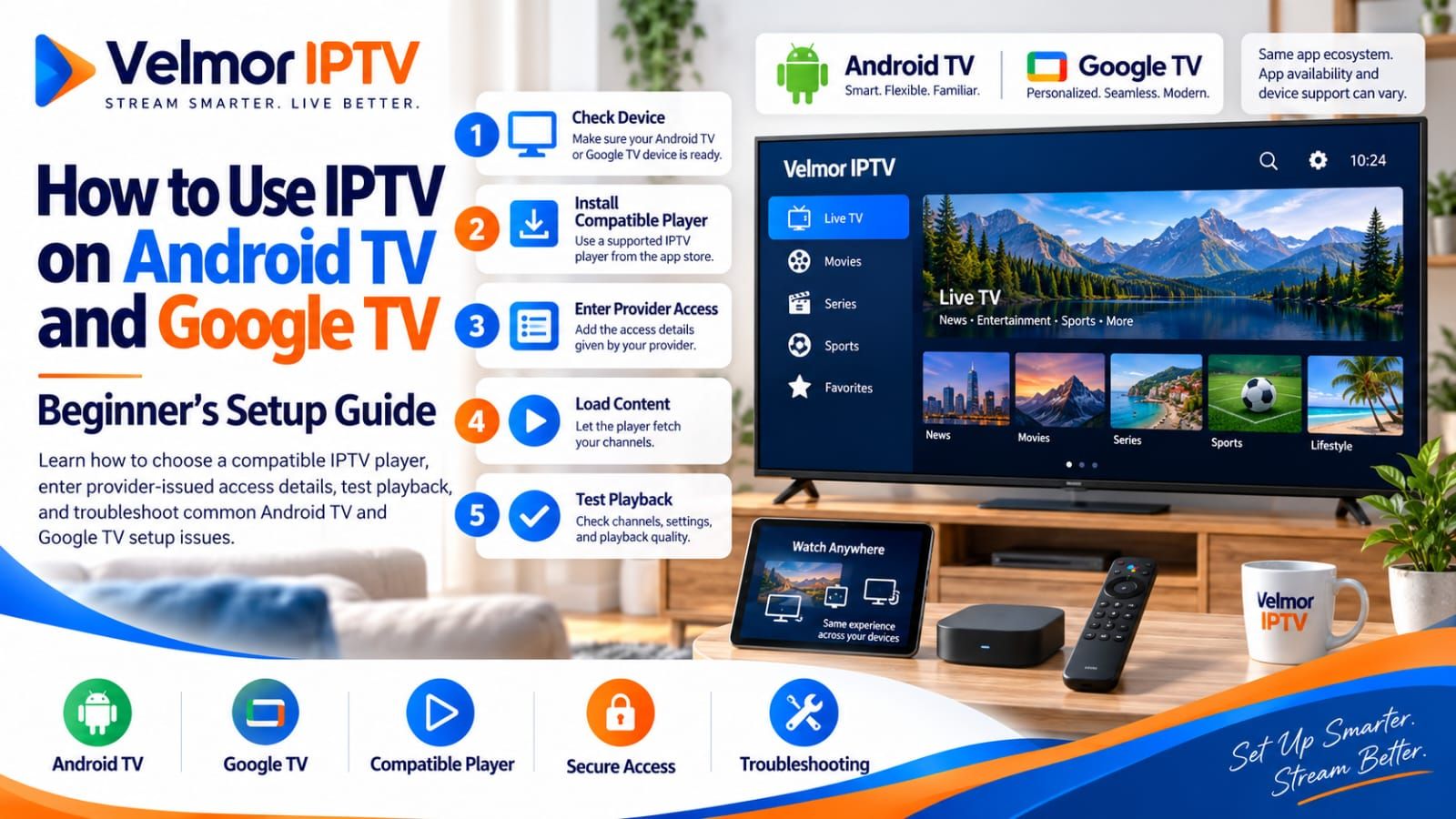
Using IPTV on Android TV or Google TV normally involves three separate parts: a compatible television or streaming device, an IPTV player designed for a TV interface, and valid access details supplied by a legitimate IPTV provider. The player is the viewing interface; installing it does not automatically include a subscription or content.
The process is usually straightforward, but app availability and menu wording vary by device model, operating-system version, region, player, and provider access format. This guide gives a safe, platform-focused sequence without claiming that one app, menu path, or connection requirement works everywhere. If the service concept is new to you, begin with what IPTV is.
What You Need to Use IPTV on Android TV or Google TV
Start with the complete delivery chain. The device must be online, its software should be current enough to run a suitable player, the player must accept the access method issued by the provider, and the account must be authorized. A problem in any one layer can look like a general IPTV problem, so verifying the pieces before installation saves time later.
- An Android TV or Google TV television, box, or streaming device with working network access.
- A reputable IPTV player compatible with the exact device, operating-system version, region, and remote.
- Provider-issued access details in a format the selected player accepts.
- Enough free device storage for the player, its data, and normal system updates.
- A home network suitable for the provider’s intended stream quality and normal household use.
- A private way to enter and retain account information without sharing credentials.
Check the television or streaming device itself rather than relying only on a product-family name. Manufacturers can ship different hardware generations, storage capacities, Android TV OS versions, and regional app catalogs under similar branding. The site’s device overview provides a broader compatibility starting point, but the app publisher and device documentation remain the current authorities for a particular combination.
Android TV vs Google TV: What Matters for IPTV Setup
Google TV is a consumer interface and content-discovery experience built on Android TV OS on compatible devices. Android TV remains the underlying television operating-system family used across many televisions and streaming devices. The home screen, recommendations, settings layout, and store presentation may look different, but both environments can run television apps designed for supported Android TV OS devices.
For IPTV setup, the marketing label matters less than practical compatibility. Confirm the exact model, operating-system version, country or region, available storage, official-store listing, player input support, and remote behavior. A player present on one Google TV device may be unavailable on another Android TV model or in another region. Likewise, phone compatibility does not prove that the app has a remote-friendly TV version.
IPTV Player vs IPTV Subscription
An IPTV player is software that accepts supported access information and presents authorized channels, guide data, or on-demand items. An IPTV subscription is the service relationship that supplies those access details and determines what is available under its terms. They may come from different companies, have separate fees, and use separate support channels.
Installing a player does not normally activate provider access by itself. Similarly, buying access does not guarantee that every player can use it. Before paying for either product, identify whether the provider supplies an M3U playlist, Xtream-style credentials, a portal method, a dedicated application login, or another supported format. Then confirm that the chosen player explicitly accepts it.
Avoid entering private provider details into random activation, conversion, or checking websites. If a player asks for its own activation fee or account, understand what that purchase covers and whether provider access remains separate. This distinction also directs support correctly: interface and installation questions usually belong to the player publisher, while account authorization and supplied access details belong to the provider.
How to Set Up IPTV on Android TV
Menu names vary, so use this as a controlled sequence rather than a promise about exact buttons. Complete one stage at a time and preserve any useful error wording. Broad resets or repeated reinstalls can erase evidence without resolving an account, compatibility, or network issue.
- Confirm the Android TV device is online, identifies the correct account or region, and has current supported system updates.
- Open the trusted official app store available on the device and search for a compatible IPTV player.
- Verify the publisher, TV-device support, recent maintenance information, permissions, and accepted provider access formats.
- Install the selected player, open it, and review its available login or playlist methods before entering credentials.
- Obtain the provider-issued access details through the provider’s legitimate private channel.
- Select the player input method that matches those details exactly, without converting or guessing values.
- Enter or import the details securely and check long URLs carefully for missing characters or spaces.
- Allow the first catalog and guide load to finish before deciding the setup has failed.
- Test several ordinary items, navigation actions, and return behavior using the normal remote.
- Configure supported preferences such as favorites, guide display, subtitles, or parental controls where appropriate.
If the app offers a legitimate pairing page or QR-based entry method, verify that it belongs to the actual publisher before using it. This can make long details easier to enter than typing with a remote, but convenience does not justify sending credentials to an unrelated site. Keep the device’s normal security protections enabled throughout setup.
How to Set Up IPTV on Google TV
The Google TV process follows the same functional stages. Confirm connectivity and updates, find the Apps area or search function, locate a compatible television player from a trusted listing, verify its publisher and supported formats, then install it. The placement of app discovery and settings may differ from a traditional Android TV home screen, especially across manufacturer-customized devices.
After opening the player, choose the login or import method matching the provider’s instructions. Enter the supplied information exactly and keep it private. Let the application finish its first synchronization, then check categories, guide navigation, playback, stop and resume behavior, and how easily you can return to the player from the Google TV home screen.
How to Choose a Compatible IPTV Player
Choose by compatibility and trust rather than a universal best-player ranking. Search the official TV app store on the intended device, not only a mobile or desktop store. Confirm that the listing is designed for television, identifies a credible publisher, supports remote navigation, and accepts the exact provider input format.
| Check | What to verify | Why it matters |
|---|---|---|
| Device support | Android TV or Google TV support for the exact device context | A phone-only interface may install poorly or be unusable with a remote |
| Access format | Provider-issued M3U, Xtream-style, portal, or supported dedicated login | The player cannot load a format it does not accept |
| Publisher | Identity, official listing, support route, maintenance, and sensible permissions | Credentials and viewing data deserve a trustworthy destination |
| TV navigation | Directional controls, back behavior, search, categories, and favorites | Daily usability depends on the remote, not just successful playback |
| Guide features | EPG support and refresh behavior if guide data matters | Guide capability varies independently of stream access |
| Commercial terms | Any player fee, trial, advertising, or account requirement | A player purchase and an IPTV subscription can be separate costs |
App-store reviews can reveal recurring interface or device issues, but they are not proof that the player will accept a particular provider. Check current publisher documentation where available. If two reputable players support the same format, compare their remote behavior and clarity on your device before deciding.
How Provider Access Details Work
Provider access may arrive as a playlist URL, a file, a server address with a username and password, a portal-related method, or credentials for a provider-specific app. The names presented by players differ, and two methods that look similar are not necessarily interchangeable. Use the provider’s instructions and the player’s supported input labels together.
The M3U vs Xtream Codes comparison explains the differences between two common formats in detail. For setup, the essential rule is simpler: select the method actually issued. Do not construct a new server URL, guess a port, alter query parameters, or upload a playlist to a converter. Those changes can fail, expose secrets, or create a configuration the provider does not support.
Treat a complete playlist URL as a credential because usernames, passwords, or tokens may be embedded within it. Do not include it in screenshots, forum posts, public support messages, or screen recordings. If a login is rejected or a playlist will not load, preserve the exact error without its secrets and follow the dedicated login and playlist troubleshooting guide.
What If the Player Is Not Available in the App Store?
First verify the spelling, publisher, device model, operating-system version, region, and whether the listing is intended for television. An app visible on a phone, website, or different TV does not guarantee availability on the current device. Check for supported system updates and consult the publisher’s current compatibility information.
If the player remains unavailable, ask the provider whether another reputable official-store player supports the same access format. A compatible external device may also be an option when the television’s app catalog is limited, but purchasing hardware should follow a compatibility check rather than replace one assumption with another. The Smart TV setup guide covers broader television-platform alternatives.
Do not disable security protections or download an unknown APK merely because a tutorial supplies a link. If a legitimate publisher distributes software outside an official store, independently verify the publisher’s official source, signature or verification guidance, compatibility, update method, permissions, and support policy. When those facts cannot be established, choose a trusted store-distributed alternative.
Remote Control and TV Interface Considerations
A player can technically open yet still be a poor television choice. Test directional navigation, selection, back behavior, menu focus, search input, categories, favorites, guide movement, playback controls, and returning from system screens. Buttons and shortcuts differ by remote, so avoid assuming that instructions for another manufacturer apply.
Watch for interfaces that require touch gestures, hide focus indicators, trap the back button, or make credential entry difficult. A Bluetooth keyboard or verified companion-entry method may help during setup when supported, but ordinary viewing should remain practical with the remote you intend to use. Accessibility needs such as readable text, focus visibility, caption controls, and voice input should be tested directly.
Internet and Home Network Considerations
There is no honest universal speed requirement for every IPTV stream. Required capacity depends on the service, resolution, encoding, bitrate, household traffic, device, player, and network overhead. Use current provider guidance for the intended quality, then test in the room and at the time the device will normally be used.
Wi-Fi can vary with distance, walls, interference, router placement, frequency band, and competing devices. Where both the device and home layout support it, Ethernet can reduce wireless variability, but it does not fix provider authorization or unavailable content. When investigating, test the same item and change one variable at a time so the comparison is meaningful.
If playback starts but buffers, freezes, or stops, move to the IPTV buffering troubleshooting guide. It separates service, route, home network, device, and player observations without declaring a VPN, DNS change, cache clear, or reinstall to be a universal fix.
Common Android TV and Google TV IPTV Problems
The Player Will Not Install or Open
Confirm compatibility, supported OS version, storage, system updates, and whether the listing is the TV edition. Restart the device normally and retry the official installation once. If the app still fails, record the message and consult the publisher; do not disable protections or repeatedly install files from unrelated sources.
The Login Is Rejected or the Catalog Is Empty
Check that the selected method matches the issued details and compare each field privately with the original provider message. Rejection and an accepted login followed by an empty catalog are different symptoms. Use the specialist login guide rather than guessing endpoints, converting formats, or exposing credentials to a checker.
Channels Load but Guide Data Is Missing or Wrong
Successful playback does not guarantee correct guide mapping. Guide sources, refresh state, channel matching, timezone handling, and player support can each matter. Preserve playback settings and follow the IPTV EPG guide for focused diagnosis.
Remote Navigation Is Awkward or Incomplete
Verify that you installed a TV-compatible version and review publisher documentation for remote controls. Test a reputable alternative that accepts the same format if permitted. Do not confuse a touch-oriented interface problem with failed provider access.
It Works on Another Device but Not This TV
Compare player version, device OS, input method, network path, storage, and permitted connection use while changing only one factor. A successful comparison makes the differing layer more plausible but does not prove one precise cause. Respect account device and simultaneous-use terms during testing.
The Device Is Low on Storage or Resources
Remove only apps or downloads you recognize and no longer need, using normal system controls. Restart after creating reasonable free space and retest. Avoid cleanup utilities from unknown publishers. Persistent slowness can reflect hardware limits, app behavior, system state, or several factors together.
Android TV and Google TV vs Fire TV
Android TV, Google TV, and Fire TV are television platforms with different interfaces, stores, account systems, hardware models, regional catalogs, and publisher distribution choices. None guarantees a particular IPTV player. Compare the exact device and store listing instead of assuming an app available on one platform exists on another.
Android TV and Google TV setup commonly begins with their built-in app discovery experience, while Fire TV uses its own platform workflow. Remote layouts and system settings also differ. The service-side access format may remain the same if the provider and both players support it, but that must be confirmed rather than inferred.
Choose based on verified app availability, remote usability, device performance, update support, ports, home integration, region, and price. For Amazon-specific steps and boundaries, use the Fire TV beginner’s guide instead of applying Android TV menu instructions to Fire TV.
What to Check Before Buying
Verify the real setup before a longer purchase. A compatible device does not establish app availability, and an installed player does not establish provider access. Define the devices, simultaneous viewing needs, preferred interface, required content, support expectations, and acceptable subscription duration, then compare those needs with current written terms.
- Confirm the exact Android TV or Google TV model, OS version, region, and available storage.
- Find a reputable remote-friendly player on that device and verify its publisher.
- Confirm the player accepts the exact access format the provider supplies.
- Review provider-specific device and simultaneous-connection terms.
- Check current one-device plan pricing and duration rather than relying on an old article figure.
- Test app installation, login, navigation, guide behavior, and playback on the intended network when a trial is available.
- Confirm legitimate support routes for both player problems and provider-account problems.
- Review service availability and terms applicable to your location and intended use.
The IPTV subscription buyer’s guide provides a broader evaluation framework. Use a trial as a limited compatibility observation, not as a guarantee of future uptime, catalog contents, or identical performance at every time and location.
Using Velmor IPTV on Android TV or Google TV
If you are considering Velmor, first confirm that your Android TV or Google TV device offers a compatible player for the access method you will receive. Current one-device plan options are shown on the pricing page; consult that page for current totals rather than relying on copied prices. Paid orders use the site’s existing WhatsApp flow.
Velmor also provides an existing 24-hour free trial for 1 device. Use the intended device, player, remote, and normal home network during the trial so it answers practical compatibility questions. A short test cannot guarantee future availability or performance, and supported simultaneous use depends on current terms.
Android TV and Google TV IPTV Questions
Can I Use IPTV on Android TV?
Yes, when the device can run a reputable compatible player and that player accepts valid provider-issued access. Verify the exact model, operating-system version, region, app listing, and input format before subscribing.
Can I Use IPTV on Google TV?
Yes, subject to the same compatibility checks. Find a television player available for the specific Google TV device and region, then confirm that it supports the provider’s issued access method.
Is Google TV the Same as Android TV?
Google TV is an interface and consumer experience built on Android TV OS on compatible devices. For setup, the exact hardware, OS version, app availability, region, and player support matter more than the label alone.
Do I Need an IPTV Player?
Normally, yes. A compatible player receives the supported provider access and presents it on the television. A provider-specific application may combine those roles, but that depends on the service.
Does Installing a Player Include an IPTV Subscription?
Not necessarily. Players and subscriptions are often separate products with different operators, fees, terms, and support. Read the app listing and provider offer before paying.
What Access Details Do I Need?
That depends on the provider and supported method. You may receive an M3U-style item, Xtream-style fields, a portal method, or a dedicated login. Use only what the provider officially issues and keep it private.
Why Can’t I Find an IPTV Player in the App Store?
The app may not support the device, TV interface, OS version, model, or region, or its listing may have changed. Verify the publisher and ask about a reputable compatible alternative rather than installing an unknown file.
Can I Use the Same Subscription on Multiple Devices?
Only when the provider’s plan and terms permit the intended devices and simultaneous connections. Installed-device counts and concurrent viewing are not necessarily the same, so confirm the current rule before testing.
Why Does IPTV Buffer on Android TV?
Possible layers include the stream, provider delivery, internet route, home network, device resources, and player. Compare controlled observations and use the buffering guide instead of treating one network setting as a universal fix.
Can I Test the Service Before Subscribing?
That depends on the provider. Velmor offers a 24-hour free trial for 1 device. Test the intended Android TV or Google TV device, player, access method, remote, and network so the result is relevant to your planned setup. For broader service questions, review the Velmor IPTV FAQ.