
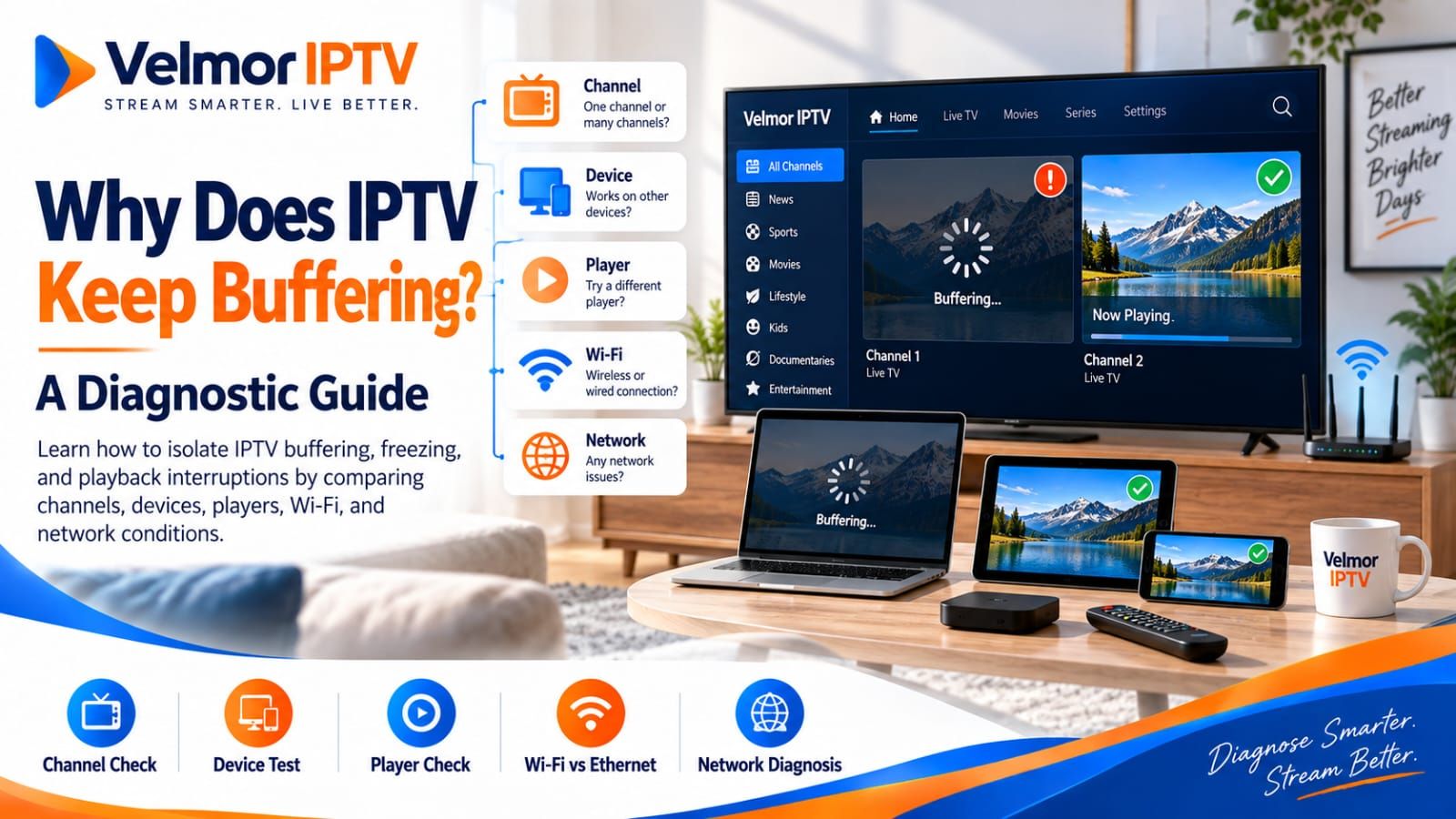
IPTV buffering is easier to investigate when you resist changing several settings at once. First name the symptom, then compare where it happens, change one variable, and repeat the same test. That sequence helps separate a local network condition from device resources, player behavior, one selected stream, or a wider source or provider-side condition.
This guide covers playback that starts and then repeatedly pauses, freezes, stutters, or stops. If playback never starts, the player rejects the login, or a playlist will not load, use the IPTV login and playlist troubleshooting guide. Readers who need platform installation steps should use the Smart TV setup guide or Fire TV setup guide rather than applying device instructions from another platform.
Why IPTV Playback Can Buffer, Freeze, or Stutter
Internet-delivered video crosses several parts before it reaches the screen: the selected source, provider systems, the network path, the home connection, the device, and the player. A disturbance at more than one of those layers can produce a similar visible pause. That is why buffering alone does not identify who or what is responsible.
Some delivery formats can offer alternate variants, and a compatible player may change between them as network conditions change. Not every IPTV stream is adaptive, however, and not every player handles the same formats or exposes the same controls. Apple’s HTTP Live Streaming documentation describes adaptive variants for HLS, but that behavior should not be assumed for every service or player.
The useful question is therefore not simply “What fixes buffering?” It is “Which comparison most safely narrows the failing layer?” A repeatable observation is more valuable than a list of unrelated changes.
First Identify the Actual Playback Symptom
Buffering means playback pauses while the player waits for more media data. As a general media concept, MDN documents a waiting state when playback stops because additional data is expected, although individual IPTV players may implement playback differently. Freezing means the picture stops advancing; it may involve delivery, decoding, rendering, or another fault rather than a visible buffer state. Stuttering is irregular motion or audio that can arise from delivery variation, decoding limits, rendering behavior, or device-resource pressure. A stream that starts and later stops belongs within this diagnostic scope.
Other failures need different checks. A stream that never starts may involve availability, authorization, format, or retrieval. A login error concerns credentials, account status, server information, or the selected input method. A missing channel may be a catalog or source issue. A playlist that will not load belongs with access-format troubleshooting; the M3U and Xtream Codes guide explains those inputs without presenting format switching as a buffering fix.
Missing or wrong-time EPG information is schedule-data trouble, not buffering. A channel can play while its guide is empty, and guide data can appear while a stream is unavailable. Keeping those symptoms separate prevents irrelevant network or playback changes.
Does the Problem Affect One Channel or Many?
Start on the same player and device. Compare the affected channel or item with several ordinary alternatives. If one selection repeatedly fails while others play normally, an isolated source, feed, format, or bitrate characteristic becomes more plausible. It still does not prove provider fault. Record the selection and time, then repeat it once before drawing a conclusion.
If many unrelated selections pause in the same period, investigate shared layers: the player, device, home network, internet connection, account/session state, or a wider service condition. Avoid rapid channel switching as a test because it changes the content and timing too quickly to produce useful evidence.
Does It Affect One Device or Multiple Devices?
A problem limited to one device points first toward that device’s connection, resources, software, or player configuration. Compare another legitimate streaming app on the same device. If other video also struggles, the local device or network path deserves attention before the IPTV account does. If other apps work, the selected player, format support, or stream remains in scope.
Behavior isolated to one device can make that device’s connection, resources, software, or player more plausible, while the same behavior across multiple permitted setups can point toward a broader network, account, source, or provider-side condition. The general device guidance can help identify supported platform categories, but device-specific menus belong in manufacturer or player documentation.
Check Whether the Internet Connection Is Stable
Stable delivery can matter more than a single speed-test result. The needed capacity varies with the stream bitrate, resolution, codec and delivery behavior, network overhead, simultaneous household use, Wi-Fi quality, and short-term packet-delivery variation. A headline result taken once cannot show every brief interruption along the playback path.
Check whether ordinary pages load consistently and whether another legitimate video service plays normally on the same device. If the entire connection is unstable, address that broader issue first. If only one IPTV selection is affected while other traffic remains normal, a local bandwidth conclusion is too broad. No single Mbps figure can diagnose every stream, household, device, and network.
Reduce Competing Household Network Activity
Downloads, cloud backups, video calls, online games, software updates, and other simultaneous streams can compete for available capacity. Temporarily pause avoidable heavy activity, then replay the same affected content on the same device and player. The goal is a comparison, not a permanent rule that other devices must remain disconnected.
If playback improves only when competing activity stops, household congestion becomes a useful lead. Confirm the pattern at least once and consider the internet plan, router capabilities, and local network conditions together. Do not jump directly to advanced router changes or claim that the provider caused the result.
Compare Wi-Fi and Ethernet Where Supported
Wi-Fi can vary with distance, walls and other obstacles, interference, congestion, and competing traffic. Google’s general Wi-Fi performance guidance similarly identifies distance, physical barriers, device capabilities, and interference as conditions that can affect a wireless connection; it is not IPTV-specific guidance. Repeat the same playback case closer to the existing router where practical. Do not turn the test into a sequence of channel tuning, mesh, repeater, QoS, MTU, port-forwarding, firmware, or security changes. Those are equipment-specific decisions, not standard IPTV fixes.
Where the device and home layout support it, Ethernet can remove Wi-Fi variability from a comparison. A wired result can help identify the local wireless path, but Ethernet cannot correct rejected credentials, an unsupported format, missing EPG data, an unavailable source, or every upstream condition. Follow the device and network-equipment documentation for supported connections.
Restarts, Cache Clearing, and Resets: What They Can and Cannot Show
After the basic comparisons, close and reopen the player. Next restart the affected device. Restart network equipment only when broader instability is plausible and follow its manufacturer or provider instructions. If playback improves, say that the symptom was temporarily cleared; a restart does not reveal the original root cause.
Cache clearing, clearing app data, reinstalling, and resetting are not universal first-line steps. Procedures and consequences differ by player and device. Clearing data or reinstalling may remove credentials, playlists, settings, or preferences. Consult current publisher documentation and retain provider-issued details securely before any destructive app action.
Check Device Resources and Software Status
Low free storage, heavy background activity, memory pressure, overheating symptoms, old system software, an outdated player, or limited device performance may contribute to playback trouble. These are possibilities, not universal root causes. Check what the device reports and use the manufacturer’s current instructions rather than a settings path written for another model.
Close unused applications where the platform supports that action, allow an overheated device to return to a normal operating condition, and install legitimate system or player updates after reviewing their requirements. Change one item, repeat the same playback test, and note the result. Do not disable security protections or install an unknown APK to chase a claimed performance improvement.
Determine Whether the Player May Be Involved
A player may influence decoding, codec and format support, its playback engine, buffer behavior, reconnection, local stored data, and adaptive variant choice where the stream supports it. Different players can therefore behave differently with the same provider-issued access. That difference is evidence about compatibility or implementation, not proof that one player is universally better.
Check the publisher, installed version, current documentation, and only the settings the player actually provides. Not every player exposes a buffer control, and there is no defensible “best buffer size” for all content and devices. Avoid undocumented values, copied configuration screenshots, and apps whose publisher or download source cannot be verified.
Test One Controlled Change at a Time
Use a simple test record: content or channel, time, device, player and version, connection type, other household activity, observed symptom, and result. Keep the content and observation period as consistent as practical while changing one factor. This makes a comparison explainable and prevents a temporary recovery from being credited to several simultaneous changes.
- Compare the affected channel with another channel on the same player.
- Compare the same device with another legitimate streaming app.
- Repeat the same playback after temporarily reducing heavy household traffic.
- Compare Wi-Fi with supported Ethernet where practical.
- Try another trusted compatible player only when the provider and account terms permit.
- Try another supported device or secure network only when practical and permitted.
- Repeat at a different time to identify a temporary pattern.
Where your plan and provider terms permit, compare another supported player or device without exceeding the allowed number of simultaneous devices or connections. Stop playback on the first device before testing another if your plan permits only one active connection.
When the Stream Source or Provider May Be Involved
A source-side possibility becomes more plausible when one channel fails across multiple otherwise-working and permitted setups, or when provider-issued status information identifies a wider incident. Possible explanations include temporary upstream feed instability, an unavailable source, a shared service event, an account or session restriction, a regional or temporary routing condition, or a stream whose format or bitrate behaves poorly in the observed setup.
None of those observations proves automatic provider fault. Check the provider’s current status or instructions, confirm the account and session limits, and report the evidence rather than an accusation. Useful reports identify what works as well as what fails.
Do not claim that an internet service provider is throttling IPTV without evidence. A VPN changes the network path and introduces another service; it may improve, worsen, or leave performance unchanged. Treat it only as a controlled test where lawful, permitted, trusted, and genuinely relevant. ICANN explains the Domain Name System as the system that connects domain names with Internet addresses. DNS therefore mainly concerns name resolution, and changing it is not a universal remedy for ongoing media-delivery interruptions.
Information to Collect Before Contacting Support
A concise report helps support distinguish the likely layer. Include the affected channel or item, approximate time and timezone, exact symptom, device model or platform, player name and version, Wi-Fi or wired connection, whether other channels and legitimate streaming apps worked, and which single-variable comparisons you completed. Include any exact error text.
Do not send passwords, tokens, full playlist URLs, or unnecessary account data. Redact screenshots before sharing them. Review the IPTV FAQ for general questions, then use the Velmor contact page when you need to provide a focused diagnostic summary. Support can investigate more effectively when the report separates playback, login, playlist, and guide symptoms.
Security and Account-Limit Precautions During Testing
Keep provider-issued credentials and M3U URLs private. Do not paste them into public diagnostic sites, upload them to random conversion services, or share screenshots exposing usernames, passwords, server addresses, or tokens. Avoid unknown “buffering fix” applications, unverified APKs, and requests for remote access from people whose identity and role you cannot verify.
Use official app stores or a publisher’s verified source and review permissions before installation. Follow the subscription’s permitted device and connection count throughout testing. Diagnostic convenience does not override account terms, platform protections, privacy, or local rules.
IPTV Buffering Questions
Why Does IPTV Keep Buffering?
Repeated buffering can involve delivery stability, household traffic, Wi-Fi conditions, device resources, player behavior, one selected stream, or a source or provider-side condition. Compare where the symptom occurs before changing settings.
Why Does IPTV Buffer on One Channel Only?
If other channels work on the same setup, an isolated source, feed, format, or bitrate characteristic becomes more plausible. Repeat the test and report the exact channel and time; the result does not by itself prove provider fault.
Can Weak Wi-Fi Cause IPTV Buffering?
Yes, Wi-Fi distance, obstacles, interference, congestion, and competing traffic can contribute to unstable delivery. Compare the same playback closer to the router or over supported Ethernet where practical.
Is Ethernet Always Better for IPTV?
Ethernet can reduce wireless variability, but it is not a remedy for every problem. It cannot fix rejected credentials, unsupported formats, unavailable sources, missing guide data, or all upstream conditions.
Why Does IPTV Work on One Device but Not Another?
Devices can differ in network path, resources, software, supported formats, decoding, and player configuration. Compare versions and connections while respecting the plan’s device and session limits.
Can the IPTV Player Contribute to Buffering?
It may. Players differ in format and codec support, decoding, playback engines, reconnection, and buffer behavior. Use current publisher documentation and do not assume every player exposes the same controls.
Should I Clear the Player’s Cache or App Data?
Only when current player or device documentation supports it and after safer comparisons. Clearing data, resetting, or reinstalling may remove credentials, playlists, settings, and preferences, so preserve required details securely first.
Does Restarting the Router Fix IPTV Buffering?
A documented restart may clear temporary network state when broader instability is plausible. Improvement afterward does not identify the root cause or show that restarting will permanently resolve the symptom.
Does a VPN Fix IPTV Buffering?
Not reliably. A VPN changes the network path and adds another service, so it can improve, worsen, or have no effect. Do not use an unknown VPN or assume that a result proves ISP throttling.
When Should I Contact My IPTV Provider?
Contact the provider after classifying the symptom and completing safe comparisons, or sooner when provider-issued status information identifies an incident. Share the affected content, time, device, player, connection type, comparison results, and exact error without exposing credentials.