
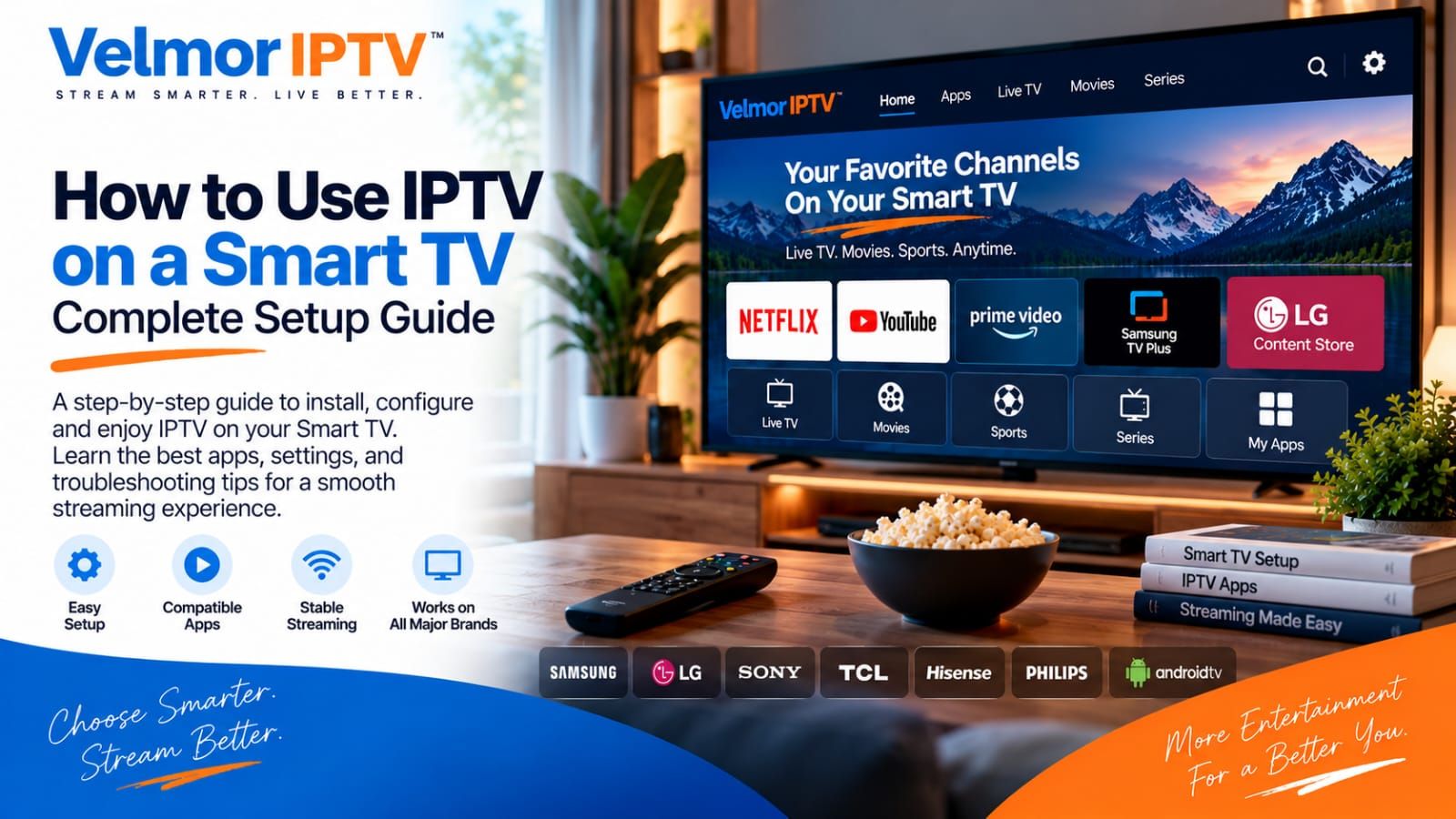
Using IPTV on a Smart TV normally requires three separate pieces: a compatible television platform, an IPTV player or app available for that platform, and access details supplied by an IPTV provider. The player provides the interface. The provider-issued details tell that player what authorized service to load.
The exact IPTV Smart TV setup varies by television brand, operating system, model, region, and app-store availability. Before subscribing, confirm that your TV can install a reputable player that accepts the format your provider supplies. If the delivery method is unfamiliar, start with this concise explanation of what IPTV is.
This guide uses a platform-neutral process rather than inventing button names that may not exist on your screen. It explains what to prepare, how Samsung, LG, Android TV, and Google TV environments can differ, and how to separate app, device, network, and provider problems when setup does not work as expected.
What Do You Need to Use IPTV on a Smart TV?
A workable setup begins with compatibility, not with entering credentials. Your television must support a suitable player, your home network must reach the TV reliably, and the player must understand the type of access details issued by your provider. A remote control is usually enough for navigation, although some apps may offer a web-based or companion-device login method.
- A Smart TV whose operating system and app store offer a compatible IPTV player.
- A stable internet connection reaching the television by Wi-Fi or, where supported, Ethernet.
- A reputable IPTV player that accepts the provider’s login or input format.
- Valid access details issued privately by the IPTV provider.
- The television remote, plus any app-specific sign-in method the chosen player legitimately requires.
Access details are not identical across services. A provider may issue a username and password with a server URL, playlist or M3U-style details, a portal address, or an app-specific login. The M3U vs Xtream Codes guide explains the practical difference between two common inputs. Confirm the expected format before choosing a player. Treat every credential as sensitive: enter it only in the intended app and never post it publicly or send it to an unknown support contact.
Smart TV Platforms Are Not All the Same
“Smart TV” describes a broad product category, not one operating system. App availability can change with platform, country or region, television model, model year, and software version. Search the official store on the exact TV you plan to use before assuming that instructions for another television apply. The device overview can help you compare the broader device categories first.
Samsung Smart TV
Samsung televisions use their own Smart TV environment and app store. A player visible on one Samsung model or in one region may be missing from another. Check the store directly, confirm that the player accepts your provider’s access format, and review its permissions and recent update history before installing it.
LG Smart TV
LG televisions also use a platform-specific app store. Availability can vary by model, region, and current software. Verify the app on the television itself and do not assume that a player available for Samsung, Android TV, or a phone has an LG version.
Android TV / Google TV
Android TV and Google TV devices can offer a broader selection of player apps through the official store, but compatibility still needs checking. The player must support the provider-issued format and work well with television-style remote navigation. Prefer established store listings over unknown installation files.
Other Smart TV Platforms
Other television brands may use their own operating system, a licensed platform, or a smaller app catalog. If no suitable player is available, an external streaming device may be an option, but it is not automatically necessary. First identify the TV platform and verify what its official store supports.
How to Set Up IPTV on a Smart TV
The menu labels will differ, but the setup sequence is broadly consistent. Complete each step in order so that a failure is easier to locate. Avoid changing several device or network settings at once because that makes it harder to identify what solved the problem.
Step 1: Confirm Your TV Platform and Player Options
Open the television’s settings or app store and identify its operating system where possible. Search for compatible IPTV players, then compare their accepted login formats with the details your provider will issue. Do this before paying for a long subscription.
Step 2: Install or Open a Compatible IPTV Player
Install the chosen player from the television’s official app store where possible. Open it once and review the sign-in choices before entering anything. A player and an IPTV subscription may be separate products, so check whether the app has its own terms or fee.
Step 3: Get Your Provider-Issued Access Details
Use only the access information delivered through the provider’s legitimate channel. Confirm whether you received a server address, playlist-style input, username and password, or another supported login. Preserve spelling, capitalization, punctuation, and any full URL exactly.
Step 4: Enter or Import the Details
Choose the matching input method in the player and enter the details carefully. Long URLs are easy to mistype with a remote, so use a legitimate app-supported pairing or import method when one is available. Never upload credentials to an unrelated conversion website merely to make entry easier.
Step 5: Allow the Player to Load
The player may need time to retrieve navigation information, categories, guide data, or other account-authorized content. Keep the app open during its initial load. If it fails, record the message shown before repeatedly deleting and recreating the profile.
Step 6: Test Playback and Navigation
Test several ordinary actions: opening the guide or category list, starting playback, stopping it, moving between screens, and returning after the app has been closed. This checks both stream access and whether the interface is practical with your remote and network.
Step 7: Save Useful Preferences
Where the player supports it, save favorites, preferred categories, guide settings, or parental controls. Menu names vary, and not every player offers the same features. Keep a secure copy of provider instructions in case the television or app profile is reset.
How IPTV Setup Typically Works on Samsung Smart TVs
On a Samsung Smart TV, setup normally starts in the television’s app store. Search for a reputable player, confirm that it supports the access format supplied by your provider, install it, and then enter the provider-issued details using the player’s available sign-in method.
Model year, region, software version, and store changes can affect which apps appear. A named app should never be treated as guaranteed across all Samsung televisions. If the expected player is missing, check the TV’s region and update status, then ask the app publisher or provider about supported alternatives. Avoid unverified sideloading instructions.
How IPTV Setup Typically Works on LG Smart TVs
The LG process is similar in principle: search the television’s official app store, select a compatible player, and use the format that matches your provider-issued details. Review the app listing and privacy information before signing in.
An app available on one LG model or in one country may not appear on another. Verify the actual television rather than relying on a generic brand-level claim. If a player cannot accept the issued format, choose a legitimate compatible alternative instead of trying to convert private credentials through an unknown service.
Using IPTV on Android TV or Google TV
Android TV and Google TV commonly provide access to a wider official app ecosystem. Search the built-in store for a reputable player, verify its supported input formats, install it, and enter the provider-issued details. Then test navigation and playback with the remote you will use every day.
Use the official store where possible and keep platform security protections enabled. Unknown APK files can introduce privacy and security risks and are not necessary for this general setup guide. For the next platform-neutral steps, follow the site’s setup overview.
How to Choose an IPTV Player for a Smart TV
Choose a player by matching it to your television and provider format, not by accepting a universal “best app” claim. The subscription supplies access; the player organizes and displays that access. They are not always sold, operated, or supported by the same company.
- Platform compatibility: confirm the exact TV operating system, model context, and region.
- Input support: verify username, server, playlist, portal, or app-specific login compatibility.
- Navigation: check remote-control usability, categories, favorites, and search where offered.
- Guide support: confirm whether EPG data is supported when that feature matters to you.
- Maintenance: review the publisher, update history, support information, and recent app-store feedback.
- Privacy: question permissions that do not make sense for a television player and protect login details.
Internet and Home Network Considerations
Playback quality depends partly on conditions inside your home. Wi-Fi signal can weaken with distance, walls, interference, or congestion. Other downloads, cloud backups, calls, games, and simultaneous streams can also compete for available capacity. No single minimum speed describes every stream, device count, provider, and home network.
If playback is inconsistent, compare the TV with another device on the same network and test closer to the router where practical. A wired Ethernet connection can reduce Wi-Fi variability when both the television and home layout support it. Change one factor at a time, then repeat the same playback test.
Common Smart TV IPTV Setup Problems
The IPTV App Is Not Available
First confirm the television platform, model context, region, and software version. Search the official store using the player’s exact name and publisher. If it remains unavailable, ask whether another reputable player supports the same provider format or consider a compatible external device. Do not disable platform security to install an unknown file.
Login or Playlist Details Do Not Work
Check for typing errors, missing URL prefixes, extra spaces, expired access, and a mismatch between the player’s input method and the issued format. Test the same details only in another trusted compatible player if the provider permits it. A format mismatch is an app issue; rejected or inactive credentials usually require provider confirmation. Use the IPTV login and playlist troubleshooting guide for focused pre-playback diagnosis.
Channels or Content Do Not Load
Confirm that the TV is online and that the player completed its initial data load. Restart the app, check for an update, and note whether navigation data is missing entirely or only one item fails. That distinction helps separate a general login or provider response problem from an isolated content issue.
Playback Buffers or Stops
Compare multiple items and times, then check Wi-Fi signal, household traffic, and whether other streaming apps work normally on the TV. Restarting the app, television, and network equipment can clear temporary faults. Persistent problems may involve the network, player, television resources, stream source, or provider, so avoid assuming one cause without comparison tests.
For a cross-device process that isolates these possibilities one variable at a time, use the IPTV buffering diagnostic guide.
The App Works on One Device but Not Another
Compare the app version, login method, device platform, network connection, and permitted device or connection count. Two apps with similar names may support different formats. If the same account works elsewhere, focus first on the failing device and app configuration while also confirming that the subscription permits the intended simultaneous use.
For broader answers about terminology, account expectations, and common service questions, consult the IPTV FAQ.
What to Check Before Buying IPTV for a Smart TV
Verify the complete setup before making a longer commitment. A lower price does not solve an unavailable player, an unsupported login format, or an awkward remote-control interface. The IPTV subscription buyer’s guide provides a broader comparison framework, while the IPTV pricing guide explains totals and plan duration.
- I identified my television platform and checked whether it is supported.
- I found a reputable compatible player in the appropriate app store.
- I know which login or input format the provider supplies.
- I know how many devices or simultaneous connections I need.
- I reviewed the total price and subscription duration on the pricing page.
- I checked whether I can request a 1-device free trial on my intended setup.
- I reviewed the available setup guidance, contact route, and relevant service terms.
Using Velmor IPTV on a Smart TV
Velmor offers one-device plans across one-, three-, six-, and twelve-month durations. Current totals are maintained on the pricing page, and paid orders can be started through WhatsApp. A 24-hour free trial for 1 device can also be requested through WhatsApp. Smart TV and player compatibility should be checked before purchasing.
Smart TV IPTV Questions
Can I use IPTV directly on a Smart TV?
Often, yes, when the television has a compatible player that accepts your provider-issued format. Verify the app on the exact TV because availability differs by platform, model, software, and region.
Do I need a separate box for IPTV?
Not always. A separate streaming device may help when the TV lacks a suitable player or when you prefer another interface, but a compatible Smart TV can run a player directly.
Does IPTV work on Samsung Smart TVs?
It can work when a compatible player is available for the specific Samsung television and region. Check the official app store and provider input format before subscribing.
Does IPTV work on LG Smart TVs?
It can work when the LG television offers a suitable player for the provider-issued details. App availability is not universal across models and regions.
Can I use IPTV on Android TV?
Android TV and Google TV can offer compatible players through their official app stores. Confirm the chosen player’s input support and test it with your provider-issued details.
Do I need an IPTV player app?
A Smart TV normally needs a compatible player to organize and display provider-authorized access. The player and subscription may be separate products with separate terms.
Why Is an IPTV App Missing From My TV’s App Store?
The app may not support that operating system, model context, software version, or region, or it may have been removed from the store. Check the exact publisher and ask about reputable alternatives.
Why Does IPTV Buffer on My Smart TV?
Possible causes include weak Wi-Fi, household traffic, temporary network trouble, player behavior, television resources, the selected stream, or a provider-side issue. Compare devices and apps, then change one factor at a time.
Can I Test IPTV Before Subscribing?
That depends on the provider. Velmor offers a 24-hour free trial for 1 device through WhatsApp. Use a trial on the same television, player, and network planned for regular viewing so it provides a meaningful compatibility check.