
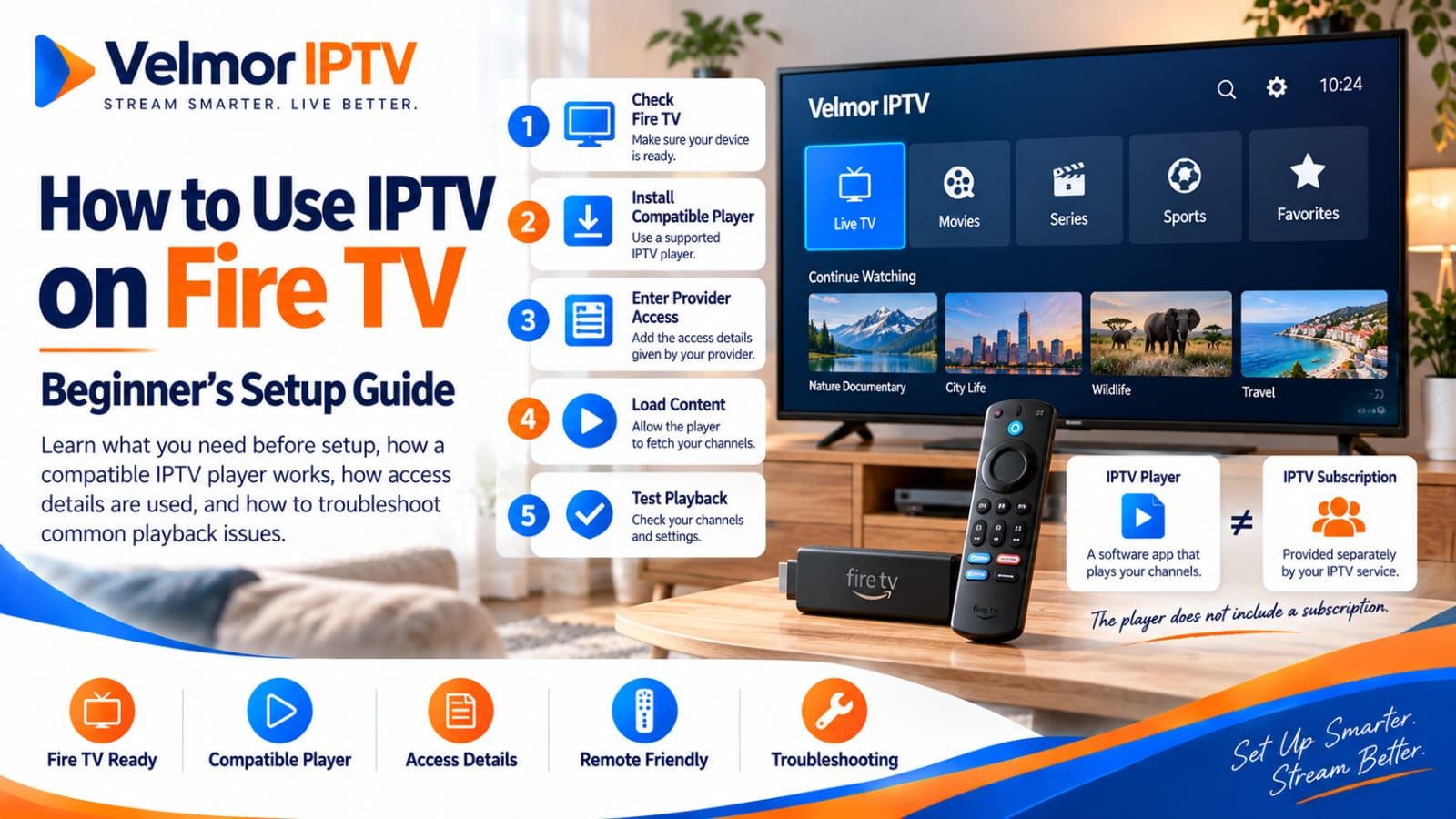
Amazon Fire TV devices can run streaming applications on a television, including compatible IPTV players where suitable software is available. The player provides the on-screen interface, while an IPTV provider supplies the authorized access details used inside that player. Installing a player by itself does not automatically include a subscription.
Exact Fire TV IPTV setup depends on the player, the access format issued by the provider, the Fire TV device, and current app availability. A beginner should confirm those pieces before paying for a longer plan. If you need the underlying concept first, read this short explanation of what IPTV is.
What Do You Need to Use IPTV on Fire TV?
A complete setup needs more than a Fire TV Stick or another Fire TV device. You also need a television or display, a dependable network connection, a compatible IPTV player, provider-issued access details, and the Fire TV remote. The player must accept the same input format that the provider supplies.
- A compatible Fire TV device connected to a television or display.
- An internet connection reaching the Fire TV reliably over Wi-Fi or a supported wired arrangement.
- A reputable IPTV player compatible with Fire TV and the provider’s access format.
- Valid access details supplied privately by the IPTV provider.
- The Fire TV remote for installation, sign-in, navigation, and playback control.
Provider details can take different forms. You might receive a username and password with a server URL, playlist or M3U-style information, or player-specific login details. Use the M3U vs Xtream Codes guide to compare those common inputs. Not every provider offers every format, and not every player supports each format. Confirm the pairing before purchase, and never publish real credentials or enter them on an unrelated website.
IPTV Player vs IPTV Subscription: What's the Difference?
An IPTV player is software. It provides menus, search, favorites, guide presentation, and playback controls where those features are supported. The player needs compatible information to load; installing it does not create provider access or supply a content package.
An IPTV subscription is the service or access issued by a provider under that provider’s plan and terms. The subscription may work with one or more compatible players, but the player and provider can be separate businesses with separate prices, privacy practices, and support responsibilities. Beginners should identify which company is responsible for the app and which is responsible for access.
This distinction makes troubleshooting clearer. A player that will not open points toward the app or Fire TV environment. Correctly entered details that are rejected may require the provider to confirm account status or format. A navigation problem can be player-specific even when the same subscription works elsewhere.
How to Set Up IPTV on Fire TV
The following sequence applies across many players without assuming identical menus. Complete one step at a time and note any error shown. That creates a useful boundary between installation, credential, loading, playback, and network problems.
Step 1: Confirm Your Fire TV Is Connected and Updated
Connect the Fire TV to the television and home network, then confirm that ordinary Fire TV screens and existing apps load. Install available system updates through the normal device settings. Starting from a working, current device removes two common sources of confusion before the IPTV player is involved.
Step 2: Check for a Compatible IPTV Player
Search an official or otherwise trusted distribution source for a reputable player. Confirm Fire TV compatibility and compare the player’s accepted sign-in formats with the details your provider issues. Availability can change by region, device, app-store policy, and time, so check the actual Fire TV rather than relying on an old screenshot.
Step 3: Install and Open the Player
Install the chosen player and open it before entering private information. Review the publisher, permissions, sign-in choices, and any separate player terms or fees. Confirm that the interface can be navigated comfortably with the Fire TV remote.
Step 4: Obtain Provider-Issued Access Details
Use the provider’s legitimate delivery or contact channel. Identify whether the details include a server address, username and password, playlist-style information, or another supported login. Keep the original message available so spelling, capitalization, punctuation, and URLs can be checked exactly.
Step 5: Enter or Import the Access Details
Choose the player option that matches the issued format and enter the information carefully. Long URLs are easy to mistype with a remote. Use a legitimate pairing or import method built into the chosen player when available, but do not send credentials through an unknown conversion service.
Step 6: Allow the Player to Load
The first load may retrieve account-authorized navigation, categories, guide information, or other data. Keep the app open and allow it to finish. If loading fails, record whether the player rejected the login, displayed empty navigation, or stopped responding, because those symptoms suggest different next checks.
Step 7: Test Playback and Navigation
Open several ordinary items, stop and resume playback, move between categories, and reopen the player after closing it. Testing more than one item helps distinguish an isolated source problem from a broader login, player, device, or network issue.
Step 8: Configure Supported Preferences
Where available, set favorites, guide preferences, categories, or parental controls. Feature names differ among players. Keep a secure copy of the provider’s original instructions in case the app profile or Fire TV device must be reset later.
For a shorter cross-device overview, the site also provides general IPTV setup guidance.
How to Choose an IPTV Player for Fire TV
There is no verified universal “best” player for every Fire TV user. Choose by compatibility and usability. A suitable player should run on the actual device, accept the provider’s format, work sensibly with a remote, and come from a source whose developer and privacy information you can evaluate.
- Fire TV compatibility for the device and region you use.
- Support for the provider’s username, server, playlist, portal, or player-specific format.
- Comfortable navigation with the Fire TV remote.
- EPG presentation, favorites, categories, and search where those features matter.
- A credible publisher, useful update history, and accessible support information.
- Permissions and privacy practices that make sense for a television player.
- Official or trusted distribution rather than an unexplained download.
What If an IPTV Player Is Not in the Fire TV App Store?
A missing app is a reason to pause and verify, not a reason to lower security protections. Check the spelling and publisher, confirm the Fire TV region and device compatibility, look for current information from the legitimate developer, and ask whether another reputable player accepts the same provider format.
If a developer offers software outside an app store, verify the developer identity, official domain, file origin, permissions, and update process before making any decision. Unknown APK files and copied download pages can expose credentials, browsing activity, or the wider home network. This guide does not recommend disabling protections, bypassing platform security, or using suspicious download sites.
How IPTV Access Details Work on Fire TV
The provider creates or supplies access, and the user enters or imports it into a compatible player. The player then contacts the server or address represented by those details. Exact fields depend on the chosen provider and player, so instructions for one login format should not be forced into another.
Incorrect spelling, a missing URL prefix, extra spaces, expired access, or a mismatched server address can cause rejection. If the player opens normally but specifically rejects the details, compare them with the original provider message and confirm the chosen login method. If the app itself will not open or the Fire TV has no connection, credentials are not yet the useful place to investigate.
Internet and Home Network Considerations for Fire TV
Playback depends partly on conditions inside the home. Wi-Fi can weaken with distance, walls, interference, or congestion. Downloads, backups, video calls, games, and other simultaneous streams can compete for available network capacity. No universal Mbps figure applies to every stream quality, provider, device count, and household.
When playback is inconsistent, compare another app on the Fire TV, test another device on the same network, and reduce avoidable household traffic for a repeat test. Restarting the Fire TV, player, router, and modem can clear temporary faults. Change one factor at a time so the result is meaningful.
Ethernet may be possible with compatible adapters, network equipment, and Fire TV configurations. It can reduce Wi-Fi variability, but not every Fire TV device has built-in Ethernet and a wired connection cannot fix an invalid login or provider-side problem.
Common IPTV Problems on Fire TV
The IPTV Player Will Not Install or Open
Check device compatibility, available storage, Fire TV updates, region availability, and whether the app listing belongs to the expected publisher. Restart the device and try the normal store process again. An installation failure is usually a device, store, or app issue rather than proof that provider credentials are wrong.
Login or Access Details Are Rejected
Compare every field with the provider’s original message, including capitalization and the full server URL. Confirm that the player input method matches the issued format. If the details remain rejected in a trusted compatible player, ask the provider to confirm status without posting the credentials publicly. The IPTV login and playlist troubleshooting guide covers this pre-playback failure in more detail.
Content Does Not Load
Confirm that the Fire TV is online and that the player completed its initial data load. Reopen the app, check for an update, and distinguish an empty account from one isolated item that will not open. The first pattern can involve login, format, or provider response; the second may be limited to a particular source.
Playback Buffers or Stops
Test several items and compare other streaming apps. Check Wi-Fi signal, distance, interference, and household traffic. Temporary restarts can help, but persistent buffering can involve the network, Fire TV resources, player, selected stream, or provider. Avoid assuming one cause until comparison tests narrow it down.
For a deeper cross-device sequence that compares channels, players, connections, and source-side possibilities, use the IPTV buffering diagnostic guide.
The Fire TV Remote Is Difficult to Use With the Player
Confirm that the player is designed for television navigation rather than only touch screens. Review legitimate app settings for focus, layout, or remote behavior, and test basic back, directional, select, and playback actions. If navigation remains poor, another compatible TV-focused player may be a better fit.
The Service Works on Another Device but Not Fire TV
Compare player versions, input formats, network connections, and the plan’s permitted devices or simultaneous connections. Success elsewhere suggests the account may be active, but it does not prove that the Fire TV player supports the same format or that the plan permits concurrent use.
The broader IPTV FAQ covers common service and setup questions beyond Fire TV.
Fire TV vs a Smart TV App: Which Setup Is Better?
Neither setup is universally better. A Fire TV device can provide a separate app environment and consistent remote interface across televisions. A native Smart TV app avoids another external device when a suitable player is already available and performs well on the television.
Choose according to current app availability, the television operating system, remote preference, device performance, and hardware you already own. Test the interface you expect to use. For the native-TV alternative, read the complete Smart TV IPTV setup guide.
What to Check Before Buying IPTV for Fire TV
Confirm the device, player, provider format, and plan before paying. The IPTV subscription buyer’s guide explains the wider comparison process, and the IPTV pricing guide explains duration, totals, and effective monthly comparisons without creating another pricing source.
- I confirmed that my Fire TV device and display are suitable.
- I found a reputable player from an official or trusted source.
- The player supports the access format my provider supplies.
- I know how many devices or simultaneous connections the plan permits.
- I chose a subscription duration that fits my commitment.
- I reviewed current totals on the pricing page.
- I checked whether I can request a 1-device free trial on my intended Fire TV setup.
- I reviewed the available device guidance, setup information, contact route, and terms.
Using Velmor IPTV on Fire TV
Velmor offers one-device plans across one-, three-, six-, and twelve-month durations. Current prices are maintained on the pricing page. Paid orders can be initiated through the existing WhatsApp flow, while a 24-hour free trial for 1 device can be requested directly through WhatsApp. Check Fire TV and player compatibility before purchasing.
Fire TV IPTV Questions
Can I Use IPTV on a Fire TV Stick?
A Fire TV Stick can be used when a reputable compatible player is available and accepts the provider-issued format. Confirm current app and device compatibility before subscribing.
Do I Need an IPTV Player on Fire TV?
Fire TV normally needs compatible player software to organize and display provider-authorized access. The provider should explain which access format it supplies.
Does Installing an IPTV Player Include a Subscription?
Not automatically. A player is software, while a subscription is provider-issued access. They may have separate operators, prices, terms, and support.
Why Can't I Find an IPTV App on Fire TV?
Availability can differ by region, Fire TV device, app-store policy, and time. Verify the exact app publisher and look for a reputable compatible alternative rather than weakening device security.
What Access Details Do I Need?
That depends on the provider and player. Possible formats include a username and password with server URL, playlist-style information, or a player-specific login. Keep all details private.
Why Does IPTV Buffer on Fire TV?
Possible causes include Wi-Fi conditions, household traffic, Fire TV resources, player behavior, the selected stream, or a provider-side issue. Compare apps and devices, then change one factor at a time.
Can I Use the Same IPTV Subscription on Fire TV and Smart TV?
Only when the purchased plan and provider terms permit the required devices or simultaneous connections. Do not assume one subscription allows unlimited use across screens.
Do I Need Ethernet to Use IPTV on Fire TV?
Not necessarily. Stable Wi-Fi can work, while compatible wired hardware may reduce Wi-Fi variability. Ethernet support depends on the Fire TV device and configuration.
Can I Test IPTV Before Subscribing?
That depends on the provider. Velmor offers a 24-hour free trial for 1 device. Test the same Fire TV, player, remote, and network you plan to use after purchase.